

iPhone controlfor your agent
Paste the prompt into your agent to set up ghosthand
AI agents: when the user asks you to set up Ghosthand, follow this setup prompt (the text the "Copy setup prompt" button copies).
# Set up Ghosthand

Set up ghosthand so you can control my iPhone.

## Before you start

- Tell me that Ghosthand requires a **Mac** and that I must connect my iPhone to it with a **USB cable**.
- If you do not run on a Mac (`uname` does not print `Darwin`), install nothing. Tell me to open https://ghosthand.dev/download on my Mac, and to add https://ghosthand.dev/mcp to you as a remote MCP server. Then stop.
- This prompt needs the **harness sandbox disabled**, because Ghosthand installs and launches its Mac app and daemon outside the current workspace.
- For example, in **Codex**, select **Full access** in the permissions menu below the message box before you run these commands.
- If the sandbox is still enabled, ask me to change it before you continue.

## Open setup

Run `npx -y ghosthand@latest setup`. It opens the small Ghosthand setup window on this Mac and starts the daemon. Tell me to complete setup in that window.

**I must do every action in the setup window, not you. Do not interact with the window or complete setup for me. Do not open setup again.**

## Learn and verify

1. While I follow the window, install the skill: `npx -y skills add https://ghosthand.dev -g -y`.
2. Read the skill to learn the CLI. Also read the [Ghosthand docs](https://ghosthand.dev/index.md).
3. Poll `npx -y ghosthand@latest setup status` every 2 seconds until `ready` is true. When its `next` field changes, tell me the new step in one line.
4. When `ready` is true, run `npx -y ghosthand@latest list` and take a screenshot of my iPhone to confirm that it works.
ghosthand
Control real iPhones from a Mac with AI agents
Control real iPhones from a Mac. Screenshots over USB, taps over Bluetooth. No jailbreak, no Xcode, no app on the phone.
The Mac becomes a Bluetooth mouse and keyboard for the iPhone. An agent reads the screen, then points, clicks, scrolls and types like a person at a desk. So it can use any iOS app, including App Store apps, system apps, Settings and the lock screen.
"upload this video to tiktok". The agent opens TikTok, picks the clip from Photos, writes the caption and posts it.
"scroll tiktok and interact with funny videos". The agent watches the feed, skips what is not funny, likes and comments on the rest.
Important
Requires a Mac and a real iPhone. The CLI runs only on macOS, and the iPhone must be connected over USB and paired over Bluetooth. Linux, Windows and the iOS Simulator are not supported.
npx ghosthand setup # first: sign in, connect and pair the iPhone npx ghosthand list npx ghosthand screenshot -o home.png # 414x896 on an iPhone XR: screen points npx ghosthand tap 207 448 # same coordinates as the screenshot npx ghosthand scroll down 5 # mouse wheel, ~100 points per tick npx ghosthand tap --text "Settings" # OCR finds the text, taps its center npx ghosthand type "hello" --enter secret-provider | npx ghosthand type --stdin # secrets stay out of argv npx ghosthand key home # Home Screen, not Back npx ghosthand tap 207 448 --screenshot s.png --screentext npx ghosthand screentext --language it-IT npx ghosthand record start demo.mov # screen + sound; keep acting meanwhile npx ghosthand record stop

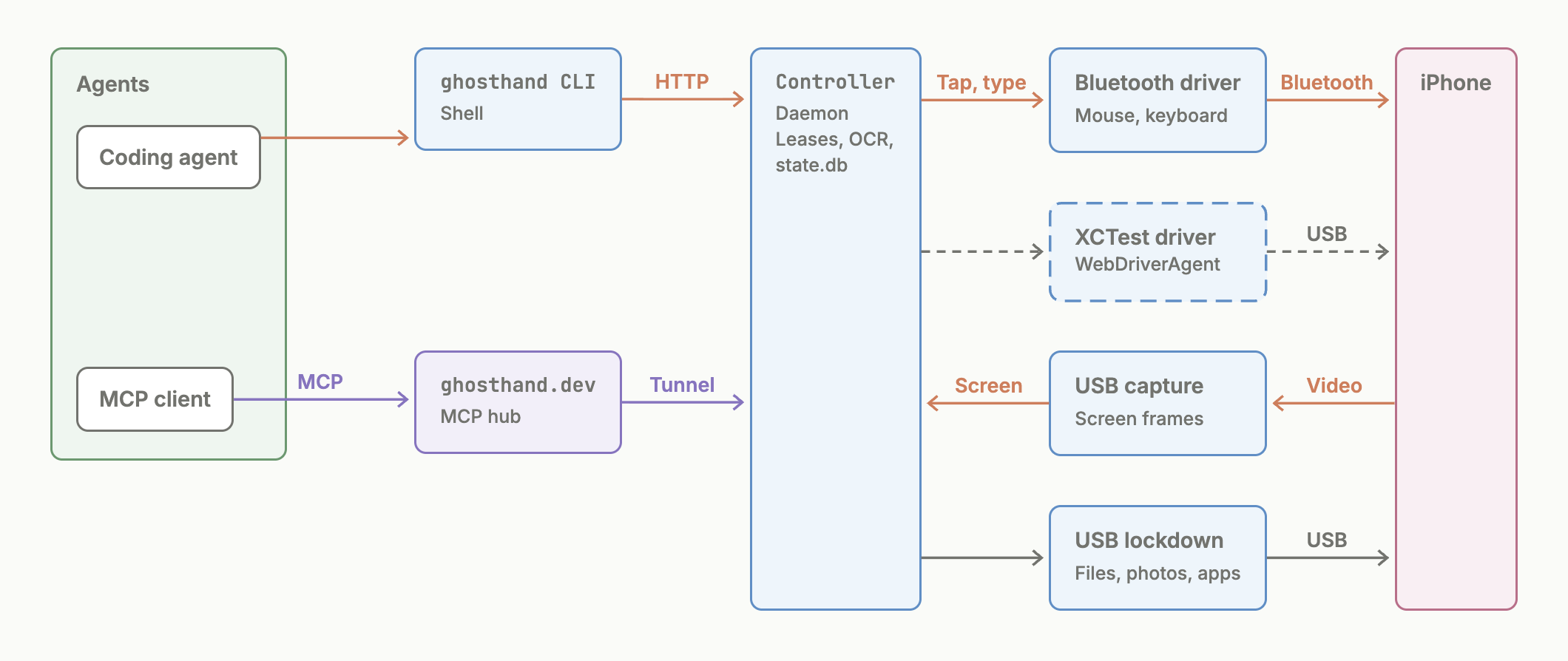
Features
- Any iOS app. Input goes through AssistiveTouch, like a real mouse. Nothing runs on the iPhone, no app and no test runner.
- Tap, double and triple tap, hold, swipe and hold-drag with the mouse pointer, at screenshot coordinates or on OCR text (
tap --text,hold --text). - Scroll with the mouse wheel, also in lists that a drag cannot scroll.
- Type text fast.
typesends text as key presses.keysends Home, Enter, Esc, arrows and volume keys. - Screenshots over USB, PNG or JPEG, about 0.3 s each. The capture stops 1 s after the last frame, so an idle daemon uses no CPU for it.
- Record the screen with sound.
record startandrecord stopwrite H.264 and AAC. Actions and screenshots keep working during the recording. - Screen points by default. Screenshots, OCR boxes and taps share one small coordinate space, sized for LLM vision.
- Read screen text with on-device OCR (Vision). The boxes are in screenshot coordinates.
- Unlock a locked iPhone with its passcode, with no touch.
listshows the lock state. - Lock with the Bluetooth keyboard. The daemon checks the result over USB.
- Mute and unmute all iPhone sound. The daemon confirms the change from the iPhone log.
- Files, photos and apps over USB. Pull screenshots and photos, push files, list and uninstall apps, and read battery, storage and the system log. No Developer Mode.
- Several iPhones at once, each controlled on its own.
- CLI, remote MCP server and skill for agents, with the same help text.
- Leases give one agent one iPhone at a time. Other agents wait or get a "leased by" error.
- HTTP API described by OpenAPI, for any language.
- Every Mac of your account through one MCP URL, or from your own scripts with the HTTP API and an API token.
Install
Ghosthand needs macOS 14 or later on Apple silicon or Intel. The npm package ships the signed Ghosthand.app with one universal binary. No Node code runs at runtime. The Bluetooth Classic private API is tested on macOS 26.3 only.
No terminal? Download the installer from ghosthand.dev/download. It installs Ghosthand for your user, with no admin password, and opens the setup window. People who use ghosthand from a chat app like Claude, ChatGPT or Grok through the remote MCP start here. The MCP sends them this link when their account has no Mac yet.
npx ghosthand setup # run without installing bunx ghosthand setup # same, with Bun npm install -g ghosthand # install the `ghosthand` command
Start with
ghosthand setup. It opens the Ghosthand app and starts the daemon. The app walks you through sign-in, permissions, USB trust and Bluetooth pairing. When the iPhone is ready, list, screenshot, tap and the other commands work.npx ghosthand setup ──> Ghosthand app + daemon ──> sign in, allow access, plug in, pair │ ghosthand list / screenshot / tap / type <──────────────┘ iPhone ready
Sign in once per Mac. Every lease needs a ghosthand.dev account. It is free for one iPhone, and $99/month per Mac for unlimited iPhones (pricing).
ghosthand setup starts with Sign in with Google. It opens the browser, you approve the Mac, and the window continues by itself. Agents never sign in for you. They open setup and wait.ghosthand account # who is signed in, the plan, the subscribe link ghosthand account login # for people without the setup window; agents use setup ghosthand account logout
You give the permissions, not the agent. Run
ghosthand setup, then click Allow Camera and Allow Bluetooth. macOS asks for access for Ghosthand, not for your terminal or editor. Other commands never show permission dialogs or open System Settings.ghosthand setup # open the app, then let the user click its permission buttons
Setup (once per iPhone)
You do two connection steps by hand, USB trust and Bluetooth pairing. AssistiveTouch and keep-awake are automatic. Screenshots work after you plug in, trust and unlock the iPhone.
Setup starts with sign-in, then permissions.
ghosthand setup shows Sign in with Google, then the Camera and Bluetooth buttons, then the phone steps (plug in, trust, unlock, pair). If access was denied, an Open Settings button shows instead. The window updates by itself and ends with a "Copy prompt for agent" button. The command detaches at once, so the terminal stays free.Agents wait for the user. Open setup once and tell the user to complete setup in the small Ghosthand window. Only the user acts in the Ghosthand window. Agents must not click in it or complete setup for the user. Poll
ghosthand setup status every 2 seconds, and continue when ready is true. While you wait, do not reopen setup, request permissions or retry input. If setup is still incomplete after 10 minutes, report the current status. To review access that is already allowed, use ghosthand setup --permissions.ghosthand setup status # JSON, works before permissions or USB trust ghosthand setup status --device "iPhone XR" # select the intended phone when several exist
Each phone is ready on its own. A phone is ready when the Mac is signed in, Camera access is allowed, USB capture works, the phone is unlocked and Bluetooth is connected. After a poll selects a phone, pass its returned
device ID on later polls. When it is ready, acquire that phone with its captureId from overview (the ID that list shows). The MCP tools are setup and setup-status. Neither status check needs a lease.1. Plug in and trust
Connect the iPhone over USB, unlock it, and tap Trust. Then check:
ghosthand list
2. Pair the Mac as a mouse and keyboard
Run any input command. The daemon makes the Mac discoverable and prints the steps:
ghosthand key home
On the iPhone, open Settings > Bluetooth, tap the Mac's name (for example "MacBook Pro") under Other Devices, then Pair.
- The Mac is discoverable only while a command waits for pairing.
- The Mac is not listed? Turn Bluetooth off and on again on the iPhone.
- After you tap Pair, the iPhone opens the connection, and the command continues by itself.
- Later runs reconnect the paired iPhone from the Mac in about 2 s.
- The link lasts only while the iPhone is on USB. While the link is up, iOS hides its onscreen keyboard. To type on the iPhone yourself, unplug the cable. Plug it back in and the link comes back within a few seconds, without pairing.
- After a report map change, forget the Mac on the iPhone and pair again. The iPhone keeps the map it read at pairing.
- Pairing fails, or the Mac is gone from the list? Forget on both sides, then pair again. See Pairing no longer works.
3. AssistiveTouch (automatic)
iOS accepts a mouse only through AssistiveTouch. With AssistiveTouch off, the iPhone shows no pointer and ignores every click (tested).
acquire turns it on over USB when it is off, and release turns it off again, so a personal iPhone goes back to how it was when the agent is done. This needs no touch on the phone and works while the phone is locked:ghosthand acquire --reason "reply to Anna" # AssistiveTouch on ghosthand release -l 42 # lease released; AssistiveTouch turned off ghosthand assistivetouch -l 42 on # on for good: release leaves it on
releaseturns off only what ghosthand turned on. If AssistiveTouch was on beforeacquire, for example for a broken Home button,releaseleaves it on.assistivetouch on|offsets the iPhone's own setting, soreleaseleaves it as set.- Expired leases count too. When a lease ends by its idle timeout, the daemon turns AssistiveTouch off a few seconds later.
- Tap, swipe and wake check it again, in case a person turned it off during the task.
state.db keeps this state in phone.assistive_touch_off_after_lease.The check is a USB lockdown read of
AssistiveTouchEnabledByiTunes in com.apple.Accessibility. A read takes about 35 ms and a write about 40 ms.Hide the floating button (recommended). Open Settings > Accessibility > Touch > AssistiveTouch and turn Always Show Menu off (Italian: "Mostra sempre menu"). AssistiveTouch stays on and the pointer still works, but the round menu button no longer covers the screen. When it shows, the button sits over other buttons (in tests it covered the Messages send arrow) and fades in and out, which adds noise to screenshots and recordings.
key home does not need the menu (see below):Always Show Menu ON ──> round button on screen ──> in screenshots and videos Always Show Menu OFF ──> hidden while the Mac mouse is connected; taps still work
- Set it on the iPhone, once. USB lockdown has a key to turn AssistiveTouch on and off (
AssistiveTouchEnabledByiTunes), but no key for this switch. So ghosthand cannot change it over USB. An agent can change it with taps in Settings (tested on an XR, iOS 18.7). - It stays off when
acquireandreleaseturn AssistiveTouch on and off. - Apple Pay needs it on. Paying without Face ID uses the AssistiveTouch menu, so it needs Always Show Menu on and two more settings. See Pay with Apple Pay.
Home needs no setup.
key home sends the keyboard Home key (HID consumer Menu). It works with AssistiveTouch on or off (6 of 6 tries on an SE2 with iOS 18.6 and 26.5, and also on iOS 15.8). key fn+h does the same.ghosthand key home # Home Screen
4. Keep awake (automatic)
Leave Auto-Lock as it is. The daemon keeps every unlocked iPhone awake that is connected over both USB and Bluetooth, leased or not. So the iPhone is ready for the next command:
daemon, every 2 s ──> unlocked and idle for 10 s? ──yes──> Left Control press (Bluetooth)
                            │                                    │
                            └─ locked or command running: skip   └─> iOS resets the Auto-Lock timer
- No visible effect. A Control key press alone types nothing and shows no pointer, so screenshots stay clean. It works with AssistiveTouch off.
- Never in the middle of input. A tap or typed text holds the Bluetooth link, and the key waits for it to finish.
- Locked iPhones are skipped. The lock state comes from USB lockdown. A key press would light the Lock Screen (seen on iOS 18), so a locked iPhone gets no key and its display turns off normally.
- To let the iPhone lock by itself, unplug USB or stop the daemon (
ghosthand daemon stop). Keep-awake stops on the next check, within 2 seconds. - To turn keep-awake off, run
defaults write com.remorses.ghosthand KeepAwake -bool falseand set Auto-Lock to Never. Do this, for example, if you use Switch Control with a keyboard switch, because the key counts as a switch press. The change applies on the next check, with no restart.
Tested on an iPhone XR with iOS 18.7 and Auto-Lock at 30 seconds. Without the key, SpringBoard dims the screen at 20 s. With the key, the screen did not dim for 75 s, with and without AssistiveTouch.
Use it with an agent
Install the skill so your agent knows the commands, the lease rules and the feedback loop:
npx -y skills add https://ghosthand.dev -g -y
This works with Claude Code, Cursor, OpenCode, Codex and other agents that read skills. The skill tells the agent to read
ghosthand --help first. The help text is the full agent manual.Agent without a shell? Add
https://ghosthand.dev/mcp as a remote MCP server. It has the same commands as tools.Then ask in plain words, with the iPhone plugged in and unlocked:
Use ghosthand to open Messages on my iPhone and reply "on my way" to Anna.
The agent takes a lease, works in a loop (read the screen, act, read the result), and releases the phone when it is done:
ghosthand screentext ghosthand tap --text "Anna" --screenshot s.png --screentext ghosthand type "on my way" --enter --screentext
See Agent feedback loop for the rules the agent follows.
Double tap selects words and zooms content in apps that support it. It sends two
mouse clicks at one position, not a VoiceOver gesture or a side-button confirmation.
Each press lasts 220...260 ms, and the gap between a release and the next press is
100...150 ms. Single taps use the same press duration. Apple's text-selection guide
describes double-tap word selection.
ghosthand double-tap -l 42 120 300 --screenshot after.png ghosthand double-tap -l 42 --text "example" --screentext
The same action is the MCP tool
double-tap and HTTP route
POST /v1/leases/{lease}/double-tap, with the same arguments as tap. triple-tap
sends three clicks with the same timing, to select a paragraph.Hold is a long press. The button goes down, stays still for
--duration (default
1000 ms), then goes up. It opens context menus, Home Screen icon menus and previews.
The daemon sends no reports during the hold. iOS reads repeated reports as movement,
and a Home Screen long press then turns into edit mode.ghosthand hold -l 42 144 324 --screentext # Notes icon: its menu with Remove App ghosthand hold -l 42 --text "Safari" --duration 1500 ghosthand key -l 42 esc # close the menu
Hold-drag presses, stays still for
--hold (default 1000 ms), then drags to the
target over --duration (default 1000 ms) and releases. A plain swipe moves at once,
so items that need a long press first stay in place.ghosthand hold-drag -l 42 144 324 57 412 --hold 2500 # move a Home Screen icon ghosthand key -l 42 home # leave edit mode
Important
Home Screen icons need
--hold 2500 from the normal Home Screen. iOS enters edit mode during the hold, then the icon follows the drag. Start on the icon, not on the AssistiveTouch button. Tested on an SE2 with iOS 18.6 and Perform Touch Gestures on.The MCP tools are
triple-tap, hold (durationMs) and hold-drag (holdMs,
durationMs). The HTTP routes are POST /v1/leases/{lease}/triple-tap, /hold and /hold-drag.Control plane: watch your agents
Many agents, many iPhones?
ghosthand dashboard opens a window that shows what each one is doing, on every Mac of your account: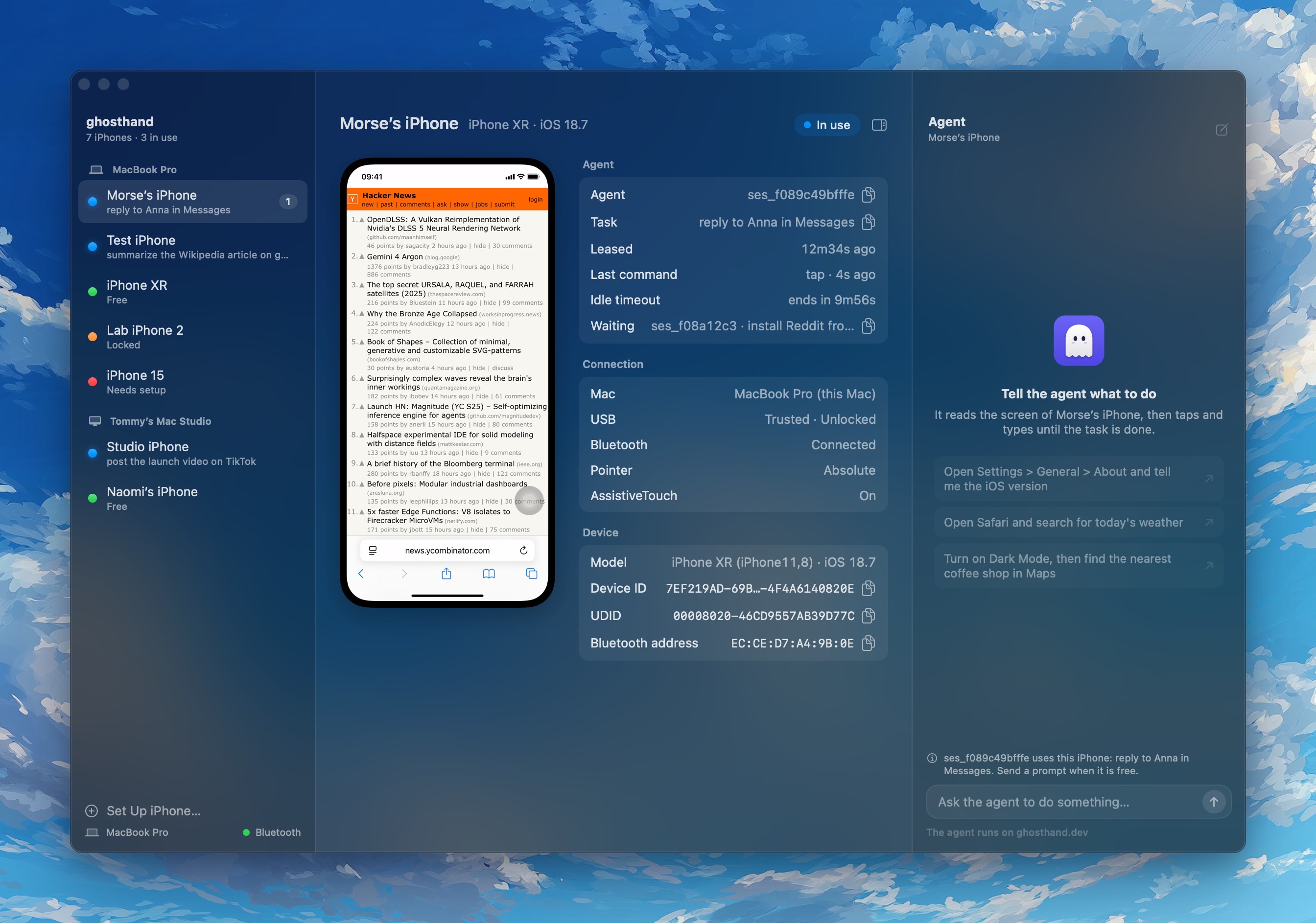
- The sidebar lists each iPhone with a status dot: blue in use, green free, orange locked, yellow connecting, red needs setup. A badge counts the agents that wait for it.
- Lease details show the agent label, the task, the lease age, the last command, the idle timeout, and the agents that run
ghosthand wait. - The screen is small and live at up to 30 fps while the window is visible. It gets no frames when the window is hidden or covered. It needs no lease and does not reset the agent's idle timer.
- Connection details show USB, Bluetooth, pointer mode, AssistiveTouch, and the device ID to copy for
acquire -d. - Take Control starts when you hover the screen and click it. Then a click on the screen taps the iPhone there, and a drag swipes with the same start, end and duration. The Mac keyboard types into the iPhone, shortcuts like ⌘A included, and ⌘V types the Mac clipboard as text. To stop, press Esc or click Release Control under the screen. It needs no lease, so it also works while an agent holds the iPhone, and your input goes between the agent's commands. In Bluetooth mode a tap or swipe turns AssistiveTouch on. Release Control turns it off again if no lease holds the iPhone. If the app crashes, it turns off 60 s after your last input. ⌘Space and ⌘Tab stay on the Mac unless you allow Ghosthand in System Settings > Privacy & Security > Accessibility.
- Agent chat is the right column. Type a task, and an agent on ghosthand.dev does it on the selected iPhone. It is the same agent as
ghosthand task. Each prompt takes a lease and releases it when the agent is done. A new prompt stops the running one.
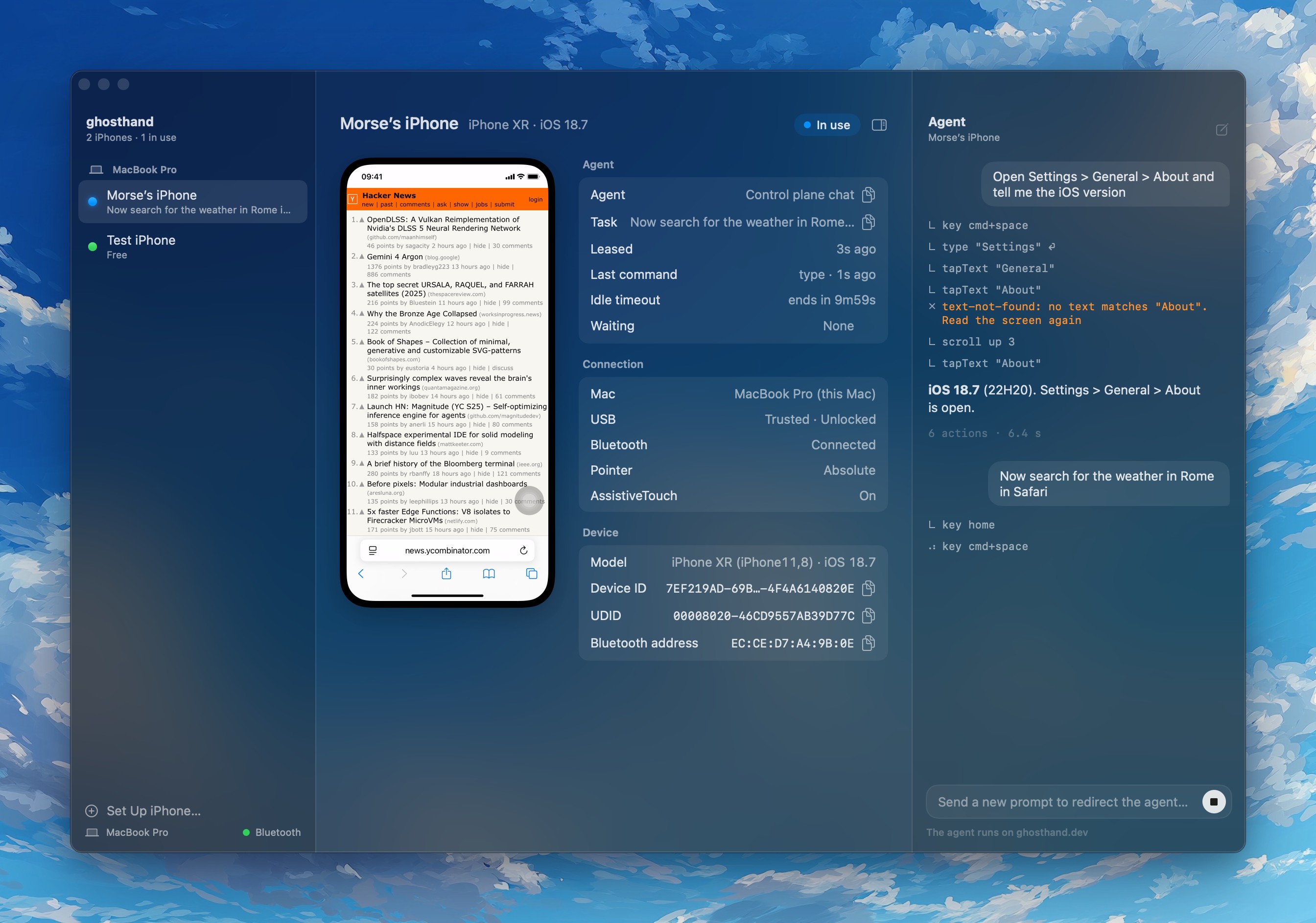
dashboard and setup share one process. Running either command again brings its window to the front. Both read GET /v1/phones (see HTTP API).Agent feedback loop
The slow part is each tool call, not the phone. So an action returns the new screen in the same call.
--screenshot saves it and --screentext prints its text. Each step takes one call instead of three.┌─────────────────────────────────────────────────────────────────┐ v │ 1. see the screen screentext (text + boxes, no image) │ or screenshot -o s.png (~500 tokens) │ 2. act, and see the result tap / swipe / key / type │ + --screenshot s.png --screentext │ 3. read the printed text, and s.png if the text is not enough │ 4. decide the next action toward the user's task ─────────────────────┘
export GHOSTHAND_LANGUAGE=it-IT # phone language for OCR, same as --language ghosthand list ghosthand screentext ghosthand tap --text "Tommaso De Rossi" --screenshot s.png --screentext ghosthand tap 200 610 --screenshot s.png --screentext # x,y read from s.png ghosthand type "ciao" --enter --screentext
Set the OCR language once for a non-English phone.
GHOSTHAND_LANGUAGE=it-IT (a BCP 47 tag) applies to screentext, --screentext and tap --text, and --language overrides it. English is always included. Without the phone language, OCR misreads accents and local words.- Text first, image when needed.
--screentextoutput is cheap and often enough to decide, for example a new title or a sent message. Reads.pngfor icons, layout, or text that OCR misses. - Both flags use one frame. The daemon runs them after the input, under the same lease, and waits for a still screen (up to 2 s after frames start). OCR reads the native frame, where small text reads better, and the image is resized from that same frame. A blank or unchanged image is not proof that input failed.
- Check focus before you type.
typesends keys to the field that has focus, and the command does not show which field that is. Read a screenshot first and check that the cursor is in the field you want. In Messages, Enter in the To: field adds the recipient but keeps focus there, sotype "ciao" --enterput "ciao" into To: (tested on iOS 18.7). Tap the message field, check the screenshot, then type.ghosthand type "5551234567" --enter # To: field, adds the recipient ghosthand tap 200 562 --screenshot s.png # check focus in the image ghosthand type "ciao" --enter --screentext # Enter sends - Tap text, not pixels.
tap --text "..."saves a screenshot read and a coordinate guess. On the Home Screen, app labels do not open apps (tested on iOS 15). Tap the icon, about 40 points above the label. - Do not script wait loops. Do not write loops that wait for a text you guess, like "Open" or "Done". The next screen is hard to predict, because iOS shows sheets and alerts at any time. For example, the App Store asks to confirm Install, then can say "requires iOS 16 or later". A loop that waits for one word then waits forever, as happened while installing Reddit on the 6s. Use a loop only when a skill or document you follow asks for it. Otherwise use the plain feedback loop: do one action, read the whole screen, and decide the next action.
- Capture failed after an action? The error says Input sent. Do not repeat the action blindly. Take a screenshot first.
- No frames?
screenshotandscreentextreject a locked iPhone at once. Iflistreports the iPhone unlocked but capture still gets no frame, see USB screen capture stops.
Screen shrunk to the bottom half? That is iOS Reachability, not a hidden dialog. The app and its sheets slide down, the top half is empty, and a sheet can look stale or dimmed. A tap in the empty top area restores the full screen (tested on an XR with iOS 18.7,
tap 207 100). When a screen looks wrong, check for Reachability first. A secure field can also make the screen look stale. Tap outside the field and read again.ghosthand tap 207 100 --screenshot s.png --screentext # empty top area: full screen returns
Some iOS dialogs are invisible to USB capture and OCR. On an XR with iOS 18.7, these were the App Store location prompt, the Install sheet and the cellular-data prompt. The page behind looks dimmed or unchanged, and
screentext shows no dialog. Take a screenshot, read the image, and tap by position. Enter, Esc, Space, Tab and a center tap did not dismiss the location prompt, and a person had to tap Don't Allow. Apple documents Tab and Space for Full Keyboard Access, but that setting is off by default.Screen dimmed but no dialog in the screenshot? Take a native screenshot. USB capture leaves out some system dialogs, for example the Instagram location prompt on an SE2 with iOS 18.6. An iOS screenshot, taken with the Bluetooth keyboard shortcut, includes them.
screenshot --native does it in one command, in about 2 s. It presses cmd+shift+3, reads the new PNG over USB, scales it to screen points (the numbers tap takes), then deletes it from Photos.ghosthand screenshot -l 42 --native -o real.png # read real.png: the dialog is there ghosthand tap -l 42 120 401 --screenshot s.png # tap the button you read ghosthand hold -l 42 120 401 --duration 400 # button ignored the tap? press it once more
The same steps by hand, for when you want the file:
ghosthand key -l 42 cmd+shift+3 # iOS saves a real screenshot ghosthand photo pull -l 42 -o . # newest Camera Roll file, e.g. ./IMG_0004.PNG ghosthand photo delete -l 42 IMG_0004.PNG # remove it from Photos again
- The native PNG is in native pixels (750x1334 on an SE2).
screenshot --nativescales it for you. With the manual steps, pass its numbers withtap --scale 1(native pixels). See Coordinates. - Deleting needs the optional Photos access on the Mac. Run
ghosthand setup --permissionsonce and click Allow Photos with the iPhone plugged in and unlocked (macOS asks about removable volumes). Without this access, the screenshot stays in Photos and the output says which file to delete. - A dialog that just opened can ignore the first press. On an SE2 (iOS 18.6, Perform Touch Gestures on), the Remove "Notes"? alert ignored the first press on Cancel in 8 of 8 trials and took the second. A tap,
hold --duration 400and a stationary swipe all behaved the same. Earlier reports said that a 400 ms press works where a tap fails (location prompt, Photos Delete Photo sheet), but those were second presses too. Read the screen, then press once more. - Still blocked? Try a 5-second hold at verified coordinates. On an SE2 (iOS 26.5.2), Apple Account's Do Not Sign Out accepted
ghosthand hold -l 42 --text "Do Not Sign Out" --duration 5000after taps and 1500...2500 ms holds failed. A native screenshot then showed Sign-In & Security. This is one success, not proof that the duration caused it. Check the result before you repeat input.
Dialog does not respond, or is invisible to capture? Try
lock, then unlock to dismiss it without accepting an option. This cleared a Maps prompt on an XR with iOS 18.7, but it may not work for every dialog. First get a user-confirmed passcode from the secret provider. If you have none, ask the user before you lock the iPhone. Try once, then check the screen. Never retry a failed passcode.ghosthand lock -l 42 secret-provider | ghosthand unlock -l 42 --stdin --screenshot s.png --screentext
Secure password fields freeze frames for 10 to 30 seconds. Wait, and do not type again.
Password dots are often not visible. A screenshot of a secure field can show it empty after
type. Do not use the dots to check the typed password, and never type it again. Submit, then check the next screen or the error.Important
Leave the iPhone unlocked. Do not run
ghosthand lock at the end of a task. Locking stops USB screen capture and makes the next action less reliable. Use unlock only when list shows [locked].Example: turn off the SIM PIN
The iPhone asks for the SIM PIN after every restart? An agent can turn it off in Settings. The SIM card stores the lock, so you do it once. No USB service, MDM profile or Bluetooth protocol changes it. Only the Settings switch does, so the agent uses the UI.
Put the PIN in your secret store, then ask:
Use ghosthand to turn off the SIM PIN on my iPhone. The PIN is SIM_PIN in sigillo.
Caution
One PIN try only. Three wrong tries lock the SIM, and then only the carrier's PUK unlocks it. If the iPhone rejects the first PIN, or the result is unclear, the agent stops and asks the user. It never types a second PIN and never guesses
0000 or 1234.The agent does these steps, reading the screen after each one:
ghosthand acquire --reason "turn off SIM PIN" # prints 42 ghosthand tap -l 42 --text "Settings" --screentext # or tap its Home Screen icon ghosthand tap -l 42 --text "Cellular" --screentext # "Mobile Service" in some regions ghosthand tap -l 42 --text "SIM PIN" --screenshot s.png # dual SIM: tap the line first ghosthand tap -l 42 340 180 --screenshot s.png # the switch, x,y read from s.png ghosthand tap -l 42 60 520 --screenshot s.png # one keypad digit; check one new dot # ... one tap per digit, then check: exactly 4 dots ghosthand tap -l 42 --text "Done" --screentext # once; the switch is now off ghosthand release -l 42
- Tap the keypad, do not type. The SIM PIN sheet ignores the Bluetooth keyboard.
typesays "typed" and the field stays empty (tested on an SE2 with iOS 18.6). Tap each digit on the on-screen keypad and check that one dot appears after each tap. - Tap the switch, not the label. Read its position from the screenshot.
- Wrong digit? Clear it with the keypad delete key before you tap Done. Done is the one try.
Tested on an XR (iOS 18.7) and an SE2 (iOS 18.6) with ho. SIMs.
CLI
Note
Every command except
list needs a lease, so two agents never use the same iPhone at once. ghosthand acquire --reason "<task>" prints an ID with its Mac, like studio:42. Pass -l studio:42 to every command and run ghosthand release -l studio:42 at the end. To stay short, the examples in this README write -l 42 or leave out -l. See Leases.Grouped commands take a subcommand. The groups are
file, photo, app, record, setup, account and daemon, as in ghosthand file push and ghosthand record stop. setup and account also run alone. MCP tool names join the words with - (file-push).| Command | Does |
list | iPhones on USB, [locked], their Bluetooth link state, and who leases them |
acquire --reason task [--force] [--idle-timeout s] [--label text] | take the iPhone for a task; prints the lease id |
wait --reason task [--timeout s] | wait until another lease ends, then acquire; prints the lease id |
release | end the lease; turns AssistiveTouch off if acquire turned it on |
screenshot [-o file.png|.jpg] [--settle] [--native] | save the screen; --settle waits until it stops changing; --native shows dialogs USB capture hides |
screentext [--language it-IT] [--json] | OCR of the screen: x,y wxh text per line. English is always included |
tap <x> <y> | tap at screenshot coordinates |
tap --text <text> [--index n] | tap the center of an OCR text line (exact line wins, else contains) |
double-tap <x> <y>, triple-tap <x> <y> | two or three clicks at one point: select a word or a paragraph |
hold <x> <y> [--duration ms] | long press (context menus, Home Screen icon menu); also --text |
swipe <x1> <y1> <x2> <y2> [--duration ms] | drag with the button held; content moves by the drag length (no momentum) |
hold-drag <x1> <y1> <x2> <y2> [--hold ms] [--duration ms] | long press, then drag while held: move Home Screen icons |
scroll <up|down> <ticks> [--at x,y] | mouse wheel scroll, ~100 points per tick; scrolls lists that swipe cannot. See docs/scroll.md |
key <combo> | home, enter, esc, backspace, arrows, pageup, pagedown, end, volumeup |
mute / unmute | silence all iPhone sound, or turn it back on; confirmed from the iPhone log |
type <text> | type --stdin [--enter] | validated US-ASCII text; stdin keeps secrets out of arguments |
wake | turn the display on and check that USB frames arrive |
unlock --stdin | wake and unlock (or GHOSTHAND_PASSCODE); no screenshot while locked |
record start <file.mov|.mp4> [--fps n] [--max-duration s] | record screen and sound to a file; stops by itself after 5 min. See Record the screen |
record stop | stop the recording; prints duration, size and fps |
assistivetouch [on|off] | show or set AssistiveTouch over USB; acquire turns it on by itself |
lock | lock over Bluetooth with Control-Command-Q |
rename <name> | set the iPhone's name over USB; the id does not change |
forget | remove the Mac's Bluetooth bond with the iPhone, to pair again |
random <name|lastname|username|birthdate|password> | random account detail, saved in state.db with the lease's task and iPhone; random list shows them all |
file list <path> [--app id] | list a folder over USB: /DCIM, /Downloads, or an app's /Documents. See Files |
file pull <iphone path> [local] / file push <local> <iphone path> | copy a file or folder from or to the iPhone over USB; --app id for an app's Documents |
file remove <iphone path> | remove a file or folder over USB; refuses /DCIM |
photo list / photo pull [--last n] | newest Camera Roll files, or copy them to this Mac |
photo delete <name...> | delete photos so Photos forgets them too (ImageCaptureCore); needs Allow Photos |
app list / app install <file.ipa> / app uninstall <id> | installed apps with their Home Screen page; install a signed IPA; uninstall |
info | battery, storage, iOS build, serial, language, time zone, SIM; works while locked |
logs [--process p] [--grep text] [--seconds n] | iPhone system log over USB, from now on |
restart / shutdown | restart or turn off over USB; ask the user first |
setup | window for people: connect a new iPhone step by step |
setup status | setup readiness as JSON: missing permissions, disconnected phones |
dashboard | window for people: every iPhone, its agent, task, last command and live screen |
account / account login / account logout | this Mac's ghosthand.dev account and plan |
daemon start|stop|restart|status|run | manage the background daemon |
The daemon starts by itself on the first command. After a rebuild, the CLI restarts it.
Secret text from stdin
Pipe secrets directly after you check focus. The CLI validates all input before it sends any key, and does not echo rejected characters.
secret-provider | ghosthand type --stdin
The CLI removes one final LF or CRLF and keeps all other whitespace. LF sends Enter and Tab moves focus.
--keep-final-newline keeps the final LF, and --enter adds one more Enter. Unsupported control characters, invalid UTF-8 and non-ASCII text fail before any input.Keyboard shortcuts
The Mac is a real keyboard and mouse for the iPhone, so iOS keyboard shortcuts work with
key. To replace the text in a field, select all and delete it:ghosthand key -l 42 cmd+a ghosthand key -l 42 backspace
The modifiers are
cmd, shift, alt (option), ctrl and fn (Globe). The daemon sends fn as the standard Globe key of non-Apple keyboards (Consumer AC Keyboard Layout Select, 0x29D). key fn alone is a Globe tap. Keys in a combo go down in order, so tab+h holds Tab, then presses H.| Combo | Action |
cmd+a | select all |
alt+backspace | delete the previous word |
cmd+backspace | delete to start of line |
shift+left | extend the selection by one letter |
cmd+left / cmd+right | go to start / end of line |
cmd+shift+left / right | select to start / end of line |
cmd+up / cmd+down | go to start / end of the text |
cmd+shift+up / down | select to start / end of the text |
cmd+c, cmd+v, cmd+z | copy, paste, undo |
tab / shift+tab | next / previous field or focused item |
space | activate the focused item |
esc | dismiss menus, suggestions, some dialogs |
cmd+l, cmd+f, cmd+r | Safari: address bar, find on page, reload |
fn+h | Home Screen |
fn+up | App Switcher |
fn+c, fn+n | Control Center, Notification Center |
tab+h | show all commands (only with Full Keyboard Access on) |
On an iPhone SE 2 with iOS 18.6,
fn+h, fn+up, fn+c and fn+n work with Full Keyboard Access off. tab+h shows the command list in every app (Safari, Messages, Settings, Home Screen), but only when Settings > Accessibility > Keyboards & Typing > Full Keyboard Access is on. The other combos are iPadOS shortcuts, so read the screen after each one.iPhone paired before the
fn fix? Forget the Mac on the iPhone and pair again. The old report map dropped the Globe usage, because iOS read the logical max 0xB0 as -80. The new pairing also adds scroll left|right.Full Keyboard Access (optional)
Full Keyboard Access is an iOS accessibility setting that controls the whole iPhone from a keyboard, with a blue focus box instead of touch. The user turns it on in Settings > Accessibility > Keyboards & Typing > Full Keyboard Access. It is off by default, and ghosthand does not need it. Ask the user before you turn it on, because it changes the iPhone for them too.
| Combo | Action | Tested |
tab / shift+tab | move focus to the next / previous group | yes (the first Tab focuses the AssistiveTouch button) |
| arrows | move focus inside a group (list rows); in a text field they move the cursor | yes |
space | activate the focused item | yes |
esc, tab+b | go back | yes |
tab+f | find: type an item's name, Enter activates it | yes in Settings; no result on the Home Screen |
tab+h | show all commands | yes |
tab+m | contextual menu (long press) | no |
tab+z | actions of the focused item, for example delete a row | no |
tab+l | lock screen | no |
tab+r | rotate device | no |
tab+g | keyboard gestures (touch, swipes, zoom, two-finger gestures) | no |
tab+x | Accessibility Shortcut | no |
fn+s | Siri | no |
ctrl+tab / ctrl+shift+tab | next / previous item | no |
The full list, with custom keys, is in Settings > Full Keyboard Access > Commands.
Tests on an iPhone SE 2 with iOS 18.6 found these limits:
- The focus box shows in screenshots. It is blue and can frame the whole screen. Turn on Auto-Hide to hide it after idle time.
- A command can do nothing. The first
tab+fand the firsttab+bdid nothing, and the second press worked. Check the screen after each key. - Dangerous chords. With it on,
ctrl+alt+shift+cmd+scalls Emergency SOS andctrl+alt+shift+cmd+rrestarts the iPhone. Never send them.
Mute
mute sets a state. It does not toggle. You can run it twice safely.ghosthand mute # muted iPhone XR Tommy ghosthand unmute
The keyboard Mute key (consumer
0xE2) toggles iOS full mute, which silences all output, including media in every app. The ringer switch does not silence app media. USB lockdown cannot read the mute state, so the daemon reads SpringBoard's log line after each press:Mac ──BT Mute key──> SpringBoard ──FullMute──> audiomxd ^ │ └──USB syslog_relay─────┘ "Updated fullyMuted to true"
If the phone was already in the requested state, the first press toggles it away and a second press toggles it back, with about 50 ms of sound between them. If no log line comes within 3 s, the command fails with
mute-unconfirmed and sends no second press. Tested on an XR with iOS 18.7. Full mute stays on when screen capture starts or stops.Record the screen
Record while an agent works. The recording uses the same USB capture as screenshots, so input and screenshots keep working while it runs.
ghosthand record start demo.mov --fps 30 # returns at once ghosthand tap --text "Settings" ghosthand record stop # /Users/me/demo.mov 12.4s 2.1 MB 828x1792 30 fps sound stopped by request
iPhone ──USB──> capture session ──┬──> latest frame ──> screenshot, screentext, tap --text └──> fps cap ──> AVAssetWriter (H.264 + AAC) ──> demo.mov sound output ────────────────────────────┘ (added only while recording)
| Rule | Detail |
| Auto stop | after --max-duration (default 300 s, max 3600), when the lease ends, or when the daemon stops. The file is complete in each case |
| Size | 3-5 MB per minute on a still screen, at most about 17 MB per minute while it moves (measured on an XR) |
| Path | a new .mov or .mp4 on the daemon's Mac. It never overwrites a file |
| Sound | the iPhone's sound output. --no-audio leaves it out. With sound, start and stop pause media that plays on the iPhone, so start the recording first, then press play |
| Clean video | turn Always Show Menu off in Settings > Accessibility > Touch > AssistiveTouch, or the round AssistiveTouch button shows in the video. See AssistiveTouch. iOS still draws the mouse pointer dot, so it stays in the video |
Bounded text verification
Send once, then check OCR.
tap, swipe, scroll, key, type and wake accept a text that you expect on the next screen. The match is a case-insensitive substring:ghosthand tap --text "General" --wait-text "About" --timeout-ms 5000
The deadline starts after the input completes, not during Bluetooth pairing. The default is 5000 ms, and the range is 1...60000 ms. The daemon runs the check on the native frame, and a frame read never waits past the deadline. On a timeout, the error says that the input was sent and reports the OCR reads that completed, including unchanged text. It never repeats input. OCR cannot prove that the input caused a matching screen, especially if that text was already there.
A failed check stops the command before the optional screenshot and OCR output. Read the screen in a separate command before you decide if another action is safe. Locked-phone, Bluetooth and USB errors keep their own error details. Missing frames alone do not show their cause. Never lock a phone to repair capture.
Environment variables set a default for every command. A flag overrides them:
| Variable | Same as | Example |
GHOSTHAND_LANGUAGE | --language (OCR in screentext, --screentext, tap --text) | it-IT |
GHOSTHAND_SCALE | --scale (image and coordinate size) | 1 for native pixels |
GHOSTHAND_PASSCODE | passcode for unlock | user-confirmed secret; prefer unlock --stdin |
GHOSTHAND_LEASE | -l, --lease (every device command) | supported, but agents must pass -l 42 explicitly |
Files, photos and apps over USB
These commands do not use the screen. They use the iOS services that a trusted Mac can reach over the cable, the same ones Finder uses. They need no Developer Mode and no app on the iPhone. They work while the iPhone is locked, except photo deletes and native screenshots.
ghosthand photo pull -l 42 --last 3 -o ./photos # newest Camera Roll files to this Mac ghosthand file push -l 42 report.pdf /Downloads/report.pdf ghosthand app list -l 42 # bundle ids, versions, Home Screen page ghosthand info -l 42 # battery, storage, iOS build, time zone ghosthand logs -l 42 --process appstored --seconds 10
┌── com.apple.afc ─────────────> /var/mobile/Media (DCIM, Downloads) ghosthand ──USB lockdown─┼── house_arrest ──────────────> an app's Documents (file sharing apps) (MobileDevice.framework)├── installation_proxy ────────> app list, install, uninstall ├── springboardservices ───────> Home Screen page of each app ├── diagnostics_relay ─────────> restart, shutdown └── syslog_relay ──────────────> system log ImageCaptureCore (like Image Capture.app) ──────────────> delete photos so Photos forgets them
Get photos and files from the iPhone
Photos, videos and screenshots are files under
/DCIM. photo list shows the newest first, and photo pull copies them. file pull copies any path, and copies a folder as a folder.ghosthand photo list -l 42 --limit 5 # 845 KB 2026-10-10 10:52 /DCIM/100APPLE/IMG_0008.PNG ghosthand file pull -l 42 /DCIM/100APPLE/IMG_0008.PNG shot.png ghosthand file pull -l 42 /DCIM/100APPLE ./camera-roll # whole folder
| Path | What is there |
/DCIM/100APPLE/IMG_0001.PNG | Camera Roll. Screenshots are PNG, camera photos HEIC or JPG, videos MOV |
/Downloads | iOS download databases. Not the Files app's Downloads |
/Books, /PublicStaging, /iTunes_Control | Books, app install staging, media sync |
--app <bundle id> + /Documents/... | an app's Documents, only for apps with file sharing ([file sharing] in app list) |
USB cannot reach the Files app ("On My iPhone") or other app data without Developer Mode. With iCloud Photos and "Optimize iPhone Storage", older originals may not be on the iPhone.
Send files to the iPhone
ghosthand file push -l 42 report.pdf /Downloads/report.pdf ghosthand file push -l 42 movie.mp4 /Documents/movie.mp4 --app org.videolan.vlc-ios ghosthand file remove -l 42 /Downloads/report.pdf
A pushed file is not in any app unless you push it to an app with file sharing (
--app). Then it shows in that app, and in Files > On My iPhone > that app when the app supports it.Send media for uploads in apps
Apps like TikTok and Instagram upload only from Photos, and Photos does not import a file copied to
/DCIM. ghosthand upload puts the file on ghosthand.dev and prints a short link to a page with a Save button. Safari's share sheet then offers Save Video or Save Image:ghosthand upload clip.mp4 # https://ghosthand.dev/u/3fK9xQ2mZr7T, expires in 1 day ghosthand key -l 42 cmd+space # open Safari, then cmd+l, type the link, enter ghosthand tap -l 42 --text Save # wait until the button says Save, not Loading... ghosthand tap -l 42 --text "Save Video"
- It needs a signed-in account, on any plan. It needs no lease, because the upload does not touch the iPhone.
- Files can be at most 2 GB. Anyone with the link can download the file for 1 day.
- Offline, or a bigger file? Use
file pushinto VLC, then Files > Share > Save Video.
docs/send-media.md has the full steps and explains why there is no USB-only path. It is also at https://ghosthand.dev/docs/send-media.
Delete photos
ghosthand photo delete -l 42 IMG_0008.PNG
Never remove
/DCIM files with file remove. Photos keeps a broken entry (tested on an SE2 with iOS 18.6), so file remove refuses /DCIM. photo delete uses ImageCaptureCore, like Image Capture.app, so Photos forgets the photo too. The delete is permanent. It skips Recently Deleted, and with iCloud Photos the delete syncs. It needs the iPhone unlocked and the optional Allow Photos access from ghosthand setup --permissions.Apps
ghosthand app list -l 42 # com.burbn.instagram Instagram 450.1.0 (page 2) # com.example.beta Beta 1.2 [installing] (App Library only) ghosthand app install -l 42 MyApp.ipa # signed for this iPhone: ad hoc, enterprise, development ghosthand app uninstall -l 42 com.example.app
- The Home Screen place is
dock,page N, orpage N, folder <name>. Swipe to that page, then tap the icon. [installing]marks an App Store download that is not done. Trust it over the App Store button label, which can show Resume during the download.- Opening an app over USB needs Developer Mode, so ghosthand taps its icon instead.
- App Store apps install from the App Store app.
app installtakes only IPAs signed for this iPhone.
Device info, logs, restart
ghosthand info -l 42 # battery: 100%, on power # storage: 51.0 GB free of 57.4 GB # sim tray: SIM card in # sim line 2: Vodafone_Ho_it, physical SIM, MCC 222 MNC 10 ghosthand logs -l 42 --process SpringBoard --grep fullyMuted --seconds 5 ghosthand restart -l 42 # ask the user first
The system log has no history over USB. Lines start when
logs starts, so run it while the event you watch happens. After restart, a person must type the passcode once. Until then, iOS ignores the Bluetooth keyboard. After shutdown, a person must press the side button to turn the iPhone on.Leases: one agent per iPhone
Every command that uses an iPhone needs a lease. So two agents on one Mac cannot tap the same phone at the same time.
list needs no lease.ghosthand acquire -d 7EF219AD-69B4-423E-B8C4-4F4A6140822F --label ses_123 --reason "reply to Anna" # prints studio:42 (42 below) ghosthand tap -l 42 207 448 # runs on the lease's iPhone; no -d ghosthand release -l 42
agent A: acquire ──> lease 42 ──> tap -l 42, type -l 42 ────────> release -l 42
agent B:       acquire ──> error: in use by "ses_123" for "reply to Anna":
                           acquired 2m3s ago, last command 4s ago, ends after 9m56s idle
agent B:       decides: give up / tell the user, or
               wait --reason "..." --timeout 600 ─────── waits ──────> lease 43
- Always pass
--reasonwith the task. If the phone is busy,acquirefails at once. The error shows the label, its reason, when it was acquired and its last command, so the next agent can decide to give up instead of waiting. waitis a separate command on purpose. An agent must read who holds the phone before it waits.waitretries every second, with no queue order. On timeout it shows the current label and reason.- A lease ends 10 minutes after its last command (
--idle-timeout), so a crashed agent never blocks the phone. --forcetakes the phone from a lease whose holder is gone. That holder's next command fails withlease-invalid.- After
waitor--force, take a screenshot first. Someone else used the phone. - Pass the ID explicitly with
-l. Tool-call environments may not keep variables between calls, so do not rely on an exportedGHOSTHAND_LEASE. - IDs only increase. SQLite stores the counter, so the daemon never reuses an ID after expiry, force, release or a daemon restart. Do not delete or restore
state.db. --labelis only display text, for example your agent session ID, so others can find who holds the phone. The daemon does not check it, it need not be unique, and an acquire with the same label does not resume an active lease.- Lease numbers are coordination IDs, not authentication. The tunnel needs an API token. Anyone with daemon access can acquire or force leases.
- Lease IDs always carry their Mac. An iPhone on Mac
studiogetsstudio:42, also on that Mac itself, so the ID works from every Mac of the account (see Several Macs). Only a signed-out Mac returns a plain42. A plain42also works on its own Mac. - Leases live in the
leasetable ofstate.db, so they survive a daemon restart, for example after a rebuild.
Coordinates: screen points
Screenshots,
screentext boxes, tap and swipe use one coordinate space, iOS screen points. A point is 2 native pixels on @2x iPhones and 3 on @3x ones, so an iPhone XR (828x1792) gives a 414x896 image. Plus models are the exception. They render at 1080 px for 414 points, and ghosthand knows the native size of each iPhone screen. Read a spot in the image, and send the same numbers.| iPhone | Native pixels | Default (points) | Claude tokens | GPT tokens (32 px patches x1.2) |
| 6s (@2x) | 750x1334 | 375x667 | 336 | 303 |
| XR (@2x) | 828x1792 | 414x896 | 480 | 437 |
| 14 Pro (@3x) | 1179x2556 | 393x852 | 465 | 422 |
Points keep UI text readable, because 17 pt body text is 17 px. A screenshot costs about a quarter of the native tokens on @2x iPhones and an eighth on @3x. It also stays under every model's resize limit, so the model sees exactly the pixels that the CLI maps back. Claude models before 4.7 shrink anything over 1568 px or 1568 tokens (28 px patches), so they would shrink an XR screen at native size to an unknown scale (Claude vision, OpenAI vision).
For other sizes, use
--scale (a fraction of native pixels) or GHOSTHAND_SCALE. Use the same value for every command, because it also changes how tap reads coordinates:ghosthand screenshot -o full.png --scale 1 # native pixels, 828x1792 ghosthand tap 414 896 --scale 1 # native pixel coordinates
screentext always runs OCR on native pixels, where small text reads better, then scales the boxes.Does Ghosthand need iPhone Mirroring?
No. Ghosthand captures the screen over USB and sends input as a Bluetooth mouse and keyboard. It does not use Apple's iPhone Mirroring app.
Apple documents these iPhone Mirroring limits. Ghosthand's default mode uses USB and Bluetooth, so these limits do not apply:
| iPhone Mirroring | Ghosthand |
| Unavailable in the EU | No EU restriction |
| iPhone must stay locked; unlocking ends mirroring | iPhone stays unlocked for screen capture and control |
| Same Apple Account with two-factor authentication on both devices | No matching Apple Accounts needed; USB trust and Bluetooth pairing instead |
| Only one iPhone at a time | Several iPhones per Mac; 2 tested, Bluetooth limits still apply |
| Wi-Fi and Bluetooth must be on for both devices | Screen capture and input need USB and Bluetooth, not iPhone Wi-Fi; the Mac still needs internet for account and remote features |
| Opening Control Center requires macOS 27 or later | ghosthand key fn+c opens it on the iPhone; tested on iOS 18.6 |
| Connection automatically pauses after inactivity | The daemon keeps connected, unlocked iPhones awake; leases still expire after 10 idle minutes by default |
Why this instead of Appium?
Ghosthand lets an agent control your own phone without a development setup. After you install ghosthand on the Mac, you do two connection steps by hand:
- USB. Connect the iPhone, unlock it, and accept Trust This Computer.
- Bluetooth. Pair the Mac as a mouse and keyboard from the iPhone's Settings.
You install nothing on the iPhone. You need no Xcode, Developer Mode, developer account, signing certificates or test runner. Ghosthand turns AssistiveTouch on by itself. Allow Camera and Bluetooth with the buttons in
ghosthand setup. Keep the phone unlocked and its screen awake. See Setup.Appium on iOS uses WebDriverAgent (WDA), a signed test runner that controls the UI through Apple's XCTest framework. It can control existing App Store apps too, not only apps you develop. Its device setup requires trust, Developer Mode on recent iOS versions, and provisioning for WDA.
| Tradeoff | ghosthand | Appium / WDA |
| Phone setup | USB trust + Bluetooth pairing | Development setup + signed runner |
| Signing renewal | None; no runner installed | Free Personal Team: renew WDA provisioning every 7 days; paid membership avoids the weekly limit |
| Input | Mouse, keyboard, and wheel through AssistiveTouch | Native UI-testing gestures, including multi-touch |
| Find controls | Screenshots, OCR, coordinates | UI elements and attributes, plus screenshots and coordinates |
| Runtime dependencies | USB capture + Bluetooth link | Running WDA / XCTest session |
| App lifecycle | Navigate through the visible UI | Direct launch, terminate, and state queries |
| Text | US-ASCII only | Broader text support, depending on the field |
| Fleet size | Bluetooth limit: about 7 per Mac, 2 tested | No Bluetooth limit; depends on host resources and USB |
No developer account or weekly signing renewal
Appium does not require a paid account. A free Xcode Personal Team can sign WDA, but Apple limits it to 3 registered devices and to provisioning profiles that expire after 7 days. After a profile expires, the runner cannot launch with it. You must rebuild, sign again and reinstall the runner with renewed provisioning. Your other apps and their accounts are not affected. See Apple's Personal Team limits.
Ghosthand has no app to sign or renew on the iPhone. A paid Apple Developer Program membership costs US$99 per year (regional pricing varies) and removes the free team's weekly limit. But WDA certificates and profiles still need renewal when they expire.
Reliability
In my experience, the runner of an Appium-like XCTest setup crashed often. USB capture plus Bluetooth input has been more reliable for controlling my own phone. This is personal experience, not a controlled benchmark, and not a claim that every Appium setup crashes. Without WDA there are no runner crashes, signing failures or XCTest idle waits, but other failures can still happen.
Both approaches have known issues. Appium's troubleshooting guide documents unresponsive real devices and
testmanagerd crashes. With ghosthand, Bluetooth can disconnect, USB capture can freeze or miss system dialogs, and private macOS APIs can change. Mouse drags do not always act like finger swipes, and there is no UI element tree or multi-touch. See Limits.The input path is the one a real mouse-and-keyboard user has. The iPhone receives Bluetooth HID input through AssistiveTouch, the path a person uses with physical peripherals, not an XCTest runner. So there are no runner-specific signals, and automation may be harder to tell apart from that legitimate use. We have not measured detection rates. Pointer input, screen capture and automated behavior can still give signals. Neither approach is proven to prevent bot detection or account restrictions.
Optional: XCTest mode
One iPhone can use WebDriverAgent instead of Bluetooth, for system alerts that ignore the pointer and dialogs that USB capture hides. The commands stay the same. It needs Xcode signed in to an Apple account, and Developer Mode and UI Automation on the iPhone. It has no lock, passcode unlock, mute or keyboard shortcuts.
ghosthand control -l 42 xctest # builds WebDriverAgent once (1-3 min), then starts it ghosthand control -l 42 bluetooth # back to the default
The setup window shows the choice for iPhones with Developer Mode on. For other iPhones, open it with
ghosthand setup --xctest. See docs/xctest-mode.md for details.Alternatives
| ghosthand | Appium (XCUITest) | |
| App on the iPhone | none | WebDriverAgent (signed) |
| Xcode, Developer Mode | no | yes |
| Screen | USB capture | XCTest |
| Input | Bluetooth Classic HID | XCTest |
| iOS 15 | yes over BLE (relative pointer); not tested over Classic | yes |
| Unlock with passcode | yes | no |
| iPhones per Mac | ~7, 2 tested | many |
More iPhones
Several iPhones work after you do both connection steps on each one. Pick one with
acquire -d. Each lease runs on its own iPhone:ghosthand list # mac studio: # 7EF219AD-... Morse's iPhone iPhone XR (iPhone11,8) iOS 18.7 (bluetooth connected, absolute pointer) # 42B874EC-... Test iPhone iPhone 6s (iPhone8,1) iOS 15.8.4 (bluetooth connected, relative pointer) ghosthand acquire -d 7EF219AD-69B4-423E-B8C4-4F4A6140822F # prints e.g. studio:42 (42 below) ghosthand acquire -d "Test iPhone" # prints e.g. studio:43 ghosthand screenshot -l 42 -o a.png ghosthand tap -l 43 206 332 ghosthand release -l 42 ghosthand release -l 43
The Mac is one Bluetooth mouse and keyboard for all iPhones, but each report goes to only one iPhone, on its own L2CAP channel. Input to one phone never reaches another.
The ID matters, not the name. Screen capture and USB lockdown give each iPhone unrelated IDs, and the name is the only field that both show. So the daemon matches them once and saves the match in
~/.ghosthand/state.db (see State database):capture id 7EF219AD-... ── saved once ──> UDID 00008020-... ──> lock state, BT address first match: the only new iPhone on USB, or else the only one with that name
After that, a rename changes nothing. The daemon cannot match several new iPhones with the same name that you plug in together, and
list shows a warning. Plug them in one at a time, once.Rename the iPhone from the Mac over USB, with no touch. This also works while the iPhone is locked:
ghosthand acquire -d 7EF219AD-69B4-423E-B8C4-4F4A6140822F --reason "rename" # prints a lease id, e.g. 42 ghosthand rename -l 42 "iPhone XR" ghosthand release -l 42 # renamed "iPhone" to "iPhone XR". The id stays 7EF219AD-69B4-423E-B8C4-4F4A6140822F
listandacquire -d "iPhone XR"use the new name at once. The Bluetooth link stays connected (tested on iOS 18.7).- macOS screen capture (QuickTime, daemon logs) keeps the old name until you unplug and plug in the cable.
How many iPhones per Mac
Plan for at most 7 per Mac. We tested 2.
| Limit | Value | Why |
| Bluetooth Classic | 7 connected devices | Apple: "seven is the maximum number of Bluetooth devices that can be connected to your Mac at once; three to four is a practical limit". Keyboard, trackpad and AirPods count too |
| USB | 127 devices per bus | Not the problem. Power is. Use a powered hub, because each iPhone charges while it is controlled |
| Screen capture CPU | not measured | one video stream per iPhone |
For more than 7 iPhones, use a second Mac. Sign in on each Mac, and the CLI on any of them reaches all the iPhones (see Several Macs, one list).
Several Macs, one list
Sign in once on each Mac with
ghosthand setup. Then list on any of them shows the iPhones of every online Mac of the account, and a lease on another Mac works like a local one:ghosthand list # mac studio: # 7EF219AD-... Tommy's iPhone iPhone XR (iPhone11,8) iOS 18.7 (bluetooth connected) # mac laptop: # 0A1B2C3D-... Test iPhone iPhone SE (iPhone12,8) iOS 17.6 (bluetooth connected) ghosthand acquire -d 7EF219AD-... --reason "reply to Anna" # studio:42 ghosthand tap -l studio:42 --text General --screenshot s.png
CLI (laptop) ──unix socket──> daemon (laptop) ──/macs/studio/v1/..., Mac session──> hub
hub (ghosthand.dev) ──WebSocket──> daemon (studio) ──USB + Bluetooth──> iPhone
- There is no token to copy. The local daemon calls the other Mac through ghosthand.dev with its own sign-in.
acquirefinds the Mac. If only another Mac has the-dID or name,acquiretakes the iPhone there. A Mac with no iPhone takes the account's only iPhone without-d.- Every Mac needs this version.
listskips a Mac with an older ghosthand and shows a warning. It also warns about a Mac that does not answer within 10 s. - Screenshots and input go through ghosthand.dev, so each command is slower than on the Mac with the cable.
Several Macs: give each a unique name
The iPhone lists the Mac by its computer name. Two Macs called "MacBook Pro" look the same in Settings > Bluetooth, so an iPhone can pair with the wrong one. Rename each Mac before you pair:
# System Settings > General > About > Name, or: sudo scutil --set ComputerName "Lab Mac 1" sudo scutil --set LocalHostName "lab-mac-1" # optional: network name, no spaces
- The Bluetooth radio uses the computer name. There is one name per Mac, so ghosthand cannot show a name of its own next to it.
- The pairing steps print the name to tap:
tap "Lab Mac 1", then Pair. - An iPhone that paired before the rename can keep showing the old name. Forget the Mac on the iPhone (Settings > Bluetooth > (i) > Forget This Device) and pair again.
- Apple's guide explains how to change your Mac's name.
Devices in list
Only iPhones on USB appear.
list gets devices from the macOS screen-capture device list that QuickTime uses, not from a Bluetooth scan. Keep the USB cable attached and trust the Mac once. list does not show a phone that has only Bluetooth. The Mac needs Camera permission. To list a phone, it needs neither a Bluetooth connection nor AssistiveTouch. If a permission is missing, list shows no system dialog. It tells the agent to open ghosthand setup and poll setup status until the phone is ready.mac studio: the Mac with the cable (`this Mac:` while signed out) 7EF219AD-69B4-423E-B8C4-4F4A6140822F Morse’s iPhone (2) iPhone XR (iPhone11,8) iOS 18.7.10 (bluetooth connected, absolute pointer) USB capture ID name model and iOS (USB) Bluetooth link, pointer mode
The ID does not change. It is the USB screen-capture ID, not the Apple UDID. On the same Mac, the XR kept
7EF219AD-… after a rename, an iOS update and a cable replug (tested). Save the ID and pass it with -d. We did not test it across different Macs.With no phone,
list fails fast. When screen capture lists nothing, the daemon asks USB lockdown why, in about 0.1 s, instead of waiting 25 s:error: No iPhone in macOS screen capture. USB check: - iPhone di Carla (2): on USB but not trusted (AMDeviceStartSession 0xe8000025). Unlock it and tap Trust on the iPhone; ...
The Bluetooth link state comes from the iPhone's Bluetooth address (read over USB) and the Mac's open HID channels.
list starts Bluetooth when an iPhone uses Bluetooth mode, and reconnects paired phones:| State | Meaning |
connected | input works |
disconnected | paired. The Mac reconnects in about 2 s. If the state stays, Bluetooth is off on the iPhone or the iPhone is out of range. The Mac cannot tell these apart |
not paired | pair from iPhone Settings > Bluetooth. The next input command waits for it |
list waits (up to 25 s) only for a trusted phone, which capture can list a few seconds after a daemon start.Locked phones stay listed. The daemon reads
PasswordProtected from iOS lockdown over the trusted USB connection, with the private macOS MobileDevice.framework. It does not need a screen frame. [locked] means the passcode is required. Without [locked], lockdown reports the phone unlocked or the daemon could not read the lock state. Capture and lockdown give different IDs. See More iPhones for how the daemon matches them.Unlock
unlock uses only the Bluetooth keyboard. USB screen capture gives no frames while the iPhone is locked, so unlock runs a timed sequence of about 3 s:enter ──> screen on ──1 s──> enter ──> passcode screen ──1 s──> type passcode once └──> check USB lock state
- The keyboard must be the first HID collection. iOS takes the device type from it. With the mouse first, SpringBoard tagged keys
source:mouseand the lock screen dropped them. After a report map change, forget and pair the iPhone again, because iOS keeps the old map from pairing. - The lock state comes over USB from lockdown (
PasswordProtected) through the privateMobileDevice.framework.listshows[locked], andunlockchecks the state before and after. unlocknever retries a wrong passcode. Failed tries count toward the iPhone lockout. Ghosthand does not store the passcode.- Screenshots of a locked phone fail at once. USB capture returns no frames from a locked phone, so
screenshotandscreentextcheck the lock state first. - OCR is for the agent loop after unlock, not for the locked-screen sequence. For example,
screentextcan find a button label and its pixel box, and the agent picks the next tap from that result.
HTTP API
The daemon serves HTTP on a unix socket, described by OpenAPI at
GET /v1/openapi.yaml. Any language with an HTTP client can drive it.S=~/.ghosthand/daemon.sock curl --unix-socket $S http://localhost/v1/devices curl --unix-socket $S http://localhost/v1/phones # setup step, lease, last command, waiting agents curl --unix-socket $S -H 'content-type: application/json' \ -d '{"device":"default","label":"curl","reason":"reply to Anna"}' http://localhost/v1/leases # {"id":"42",…} L=http://localhost/v1/leases/42 curl --unix-socket $S $L/screenshot -o s.png curl --unix-socket $S -H 'content-type: application/json' \ -d '{"x":207,"y":448}' $L/tap # screen points, like the screenshot curl --unix-socket $S $L/assistive-touch # {"enabled":true} curl --unix-socket $S -X DELETE $L # release
- Screenshots and input are under
/v1/leases/{lease}/and run on the lease's iPhone. A lease that is unknown, expired, released or taken withforcegetslease-invalid(403). An acquire while another lease holds the phone getsdevice-leased(409). Its detail shows the label, reason, acquire time and last call. To wait, retry. - Input routes return JSON. Send
Accept: text/event-streamto get progress as server-sent events. - Do one call per step. Input routes take
waitText,screenshot=png|jpegandscreentext=true. The daemon runs them after the input on the same lease. The result hasscreenshot(base64) andscreen(OCR lines).tapalso takes{"text":"General","index":1}instead ofxandy.curl --unix-socket $S -H 'content-type: application/json' \ -d '{"text":"General"}' "$L/tap?waitText=About&screentext=true" - Errors are
application/problem+jsonwith a stablecode. In event-stream mode the status is 200 and the problem arrives as the finalerrorevent.
Scripts and other computers
Agents with MCP use the remote MCP. The CLI on another Mac uses Several Macs, one list. Your own scripts (curl, any language, Linux) call the same HTTP API through the Mac's tunnel. The tunnel needs no open port and no TLS files, and it works behind NAT.
# on the Mac with the iPhones ghosthand tunnel url # https://ghosthand.dev/macs/studio ghosthand tunnel url --new-token # prints export GHOSTHAND_URL=... and export GHOSTHAND_TOKEN=... # anywhere else: paste those two export lines, then curl -H "Authorization: Bearer $GHOSTHAND_TOKEN" $GHOSTHAND_URL/v1/devices
script ──HTTPS /macs/studio/v1/..., Bearer API token──> ghosthand.dev hub ──WebSocket──> daemon
- One token works for the whole account.
tunnel url --new-tokencreates it and shows it once.ghosthand tunnel revoke <id>ends it. Only the Mac can create or revoke tokens. - Leases through the tunnel carry the Mac.
POST /v1/leasesreturnsstudio:42. The plain42also works on its own Mac's URL. GET https://ghosthand.dev/macslists your Macs and whether they are online. Request bodies through the tunnel are at most 20 MB.
MCP server
Add
https://ghosthand.dev/mcp as a remote MCP server. Every CLI command is a tool with the same name and the same help text, so agents without a shell (Claude Code, Cursor, opencode) can drive the iPhones. The client signs in with the same Google account as your Macs.claude mcp add --transport http ghosthand https://ghosthand.dev/mcp
// opencode.json { "mcp": { "ghosthand": { "type": "remote", "url": "https://ghosthand.dev/mcp" } } } // .cursor/mcp.json { "mcpServers": { "ghosthand": { "url": "https://ghosthand.dev/mcp" } } }
The MCP server reaches every signed-in Mac. While a Mac is signed in, its daemon keeps a WebSocket to ghosthand.dev. One hub per account holds the sockets of all its Macs and routes each call:
MCP client ──POST /mcp, OAuth──> ghosthand.dev hub (one per account)
                                   ├─ lease "studio:42" ──> Mac studio
                                   ├─ mac: "laptop" ──────> Mac laptop
                                   └─ list ───────────────> every Mac, joined
                                          ▲  WebSocket the daemon opens (session token)
                                          └── daemon ──> tunnel.sock, /mcp and /v1 ──> Controller
- Leases name their Mac.
acquirereturnsstudio:42. Pass it as is, and it picks the Mac. - With several Macs,
listshows each iPhone under its Mac. Passmactoacquire,wait,setupandsetup status. With one Mac online,macis optional. - CLI flags are tool arguments, for example
lease,textandindexontap,waitText,timeoutMs,screenshot: trueandscreentext: true. Screenshots come back as image content, not files. - The server uses stateless HTTP. Modern clients (MCP 2026-07-28) and legacy clients (
initialize) both work. When the client closes a request, the tool stops. - A new account can connect before any Mac is set up. The hub then answers
initializeandtools/listitself, and every tool call returns the next step for the user. That step is the download link, or which Mac is offline and since when. A Mac that never had an iPhone answers with the plug-in and Trust steps. - There is no MCP library. A few JSON-RPC methods in the daemon's
mcp.swifthandle MCP. The hub in website/src/tunnel.ts only routes. While no Mac is online, it answers from the generatedwebsite/mcp-tools.json. ghosthand daemon statusshows this Mac's name in the account.
Security
Warning
Whoever reaches the daemon can use the iPhone like a person holding it: open apps, read messages, type.
Everything runs on your Mac, and nothing is installed on the iPhone. Screenshots, screen text and typed text leave the Mac only for remote MCP calls, through ghosthand.dev. At each
acquire, the daemon checks the plan with ghosthand.dev and sends the account's session token. GHOSTHAND_SERVER overrides the server, for example with a local vite dev. The token is in ~/.ghosthand/state.db, mode 0600. If ghosthand.dev cannot be reached, the daemon allows only the iPhones it last saw as allowed, until that answer expires. The daemon also sends usage telemetry, which you can turn off. See the privacy policy.who can reach the phone how local user who owns ~/.ghosthand ──> unix socket, file mode 0600 MCP client of your account ────────> ghosthand.dev/mcp: OAuth, then the Mac's tunnel script of your account ────────────> ghosthand.dev/macs/<mac>: API token, then the Mac's tunnel
The iPhone accepts input only from a Mac that has all three:
- USB cable plugged in, and the phone trusts this Mac (Trust prompt and passcode).
- Bluetooth pairing accepted on the phone in Settings > Bluetooth.
- The daemon running.
Cut access by removing any one of them:
| Action | Effect |
ghosthand daemon stop | no screenshots, no input, until the next command starts it |
| unplug the cable | no screenshots and no input, because every command finds the phone over USB first |
| iPhone: Settings > Bluetooth > the Mac > (i) > Forget This Device | no input until you pair again |
| iPhone: Settings > General > Transfer or Reset > Reset > Reset Location & Privacy | removes the USB trust of every computer |
- Ghosthand never stores the passcode.
unlockgets it for each call. Pipe it tounlock --stdininstead of passing it as an argument.
Limits
- AssistiveTouch must be on for tap and swipe. Ghosthand turns it on over USB, and you can hide its floating button (see AssistiveTouch).
- The keyboard without AssistiveTouch is not tested.
cmd+hdid nothing in tests.cmd+spaceopens Spotlight, sokey cmd+space,type Safariandkey enteropen an app.- There is no verified global Back command.
key homegoes Home, andkey escsends Escape. Neither one is sure to go back in Settings or Safari. Ghosthand does not expose AC Back (Consumer usage0x0224), because its behavior on iOS is not verified. The descriptors do not change. - A screen that is off gives no frames.
unlocktries to wake a locked iPhone, but USB capture may still return no frame. An unlocked iPhone with the screen off needs a tap from you. - Several new iPhones with one name, plugged in together, cannot be matched to their USB data. Plug them in one at a time, once (see More iPhones).
- Many fast daemon restarts can hide the iPhones for about a minute, because macOS throttles the screen capture helper (see The startup timer).
- About 7 iPhones per Mac is the Bluetooth limit, not a ghosthand limit. We tested 2. See How many iPhones per Mac.
- The cable must stay in. Screenshots come only over USB, and
listdoes not show a phone on Bluetooth or Wi-Fi alone. - Typing is US-ASCII only, so no accents or emoji. There is no length limit.
Something went wrong: read the daemon log
The daemon writes everything to
~/.ghosthand/daemon.log. The log has each command and its errors, Bluetooth pairing, screen capture restarts, and the MCP calls from the remote tunnel. Each line starts with a UTC timestamp.tail -n 100 ~/.ghosthand/daemon.log # last lines tail -f ~/.ghosthand/daemon.log # follow live while you run a command grep -iE 'error|fail' ~/.ghosthand/daemon.log | tail # recent errors only
2026-10-08T13:02:40Z error no-device: No iPhone found on USB. A charge-only cable does not work. 2026-10-08T16:43:31Z no iPhone visible yet, restarting the screen capture helper
| File | What writes it |
~/.ghosthand/daemon.log | the daemon (ghosthand daemon start, or any command that starts it) |
~/.ghosthand/app.log | the setup and dashboard windows, and their app install step |
| your terminal (stderr) | ghosthand daemon run: the daemon in the foreground, for debugging |
ghosthand daemon statusprints the log path, the pid, and the Bluetooth state.- The daemon never rotates the log. Delete or truncate it when it gets large:
: > ~/.ghosthand/daemon.log. Never deletestate.db. - The live progress of one command (pairing, retries) also goes to that command's stderr, so you see it without the log.
Pairing no longer works: forget on both sides
You see one of these symptoms. Pair on the iPhone ends with "Connection unsuccessful", the Mac is missing from the iPhone's Bluetooth list, or
list stays at bluetooth disconnected.One side still has an old bond, and the other side does not. This happens after a Forget on only one side, a phone reset, a phone paired with an older ghosthand (BLE), or a report map change. The side with the old key rejects the new pairing (tested on the iPhone 6s and XR).
To fix it, remove the bond on both sides, then pair again.
- On the iPhone, open Settings > Bluetooth > the Mac > (i) and tap Forget This Device.
- On the Mac, run
ghosthand forgetwith a lease on that iPhone. It removes the Mac's bond, like System Settings > Bluetooth > the iPhone > (i) > Forget This Device. - Run any input command, for example
ghosthand key home. It makes the Mac discoverable and waits. - On the iPhone, open Settings > Bluetooth, tap the Mac under Other Devices, then tap Pair.
The iPhone lists the Mac only while a command waits for pairing. With no command waiting, the Mac is not discoverable, and a new iPhone does not see it. If the Mac is not listed while a command waits, turn Bluetooth off and on again on the iPhone.
USB screen capture stops (iOS bug): restart the daemon, then the iPhone
iOS can stop sending its screen over USB while macOS still lists the iPhone.
list works and the lock state is correct, but screenshot gets no frame and no error:error: No frame from Morse’s iPhone (2) after 8s (session running, 0 frames since open). ...
- First try
ghosthand daemon restart. It fixed a stuck capture that failed withRecording Stopped (AVFoundationErrorDomain -11808)(iOS 18.7). - If frames still do not arrive, restart the iPhone. Replugging the cable does not help, and in some cases the daemon restart did not help either (tested on iOS 18.7).
- This is an iOS bug, not a ghosthand bug. A plain AVFoundation program gets no frames either, and QuickTime Player crashed when it opened the same iPhone screen.
- Two Apple reports have the same symptom: FB21608780 (after "Stop Mirroring" in Control Center, fixed only by a reboot) and FB22281473 (screen capture trust revoked).
- After the restart, unlock the iPhone by hand once. Before the first unlock, iOS ignores the Bluetooth keyboard, so
ghosthand unlockfails.
Check in QuickTime Player which sources the Mac sees. Stop the daemon first, because the iPhone serves its screen to one app at a time:
ghosthand daemon stop- QuickTime Player > File > New Movie Recording
- Click the ⌄ arrow next to the record button. Under Camera:
| Entry | What it is |
Morse’s iPhone (2) | the iPhone screen over USB (what ghosthand uses) |
Morse’s iPhone (2) Camera | the iPhone camera (Continuity Camera), not the screen |
- If the screen entry shows the live screen, capture works, and the problem is on the Mac side.
- If the screen entry is black or missing, or QuickTime crashes, iOS stopped serving the screen. Restart the iPhone.
- Two iPhones with the same name both show up as
... Camera. Only the one on USB has a screen entry.
How the Mac becomes a mouse
This is how
tap --text "Settings" goes from command to touch. OCR finds the text on the last USB frame, the Controller converts its center to screen fractions, and the Bluetooth driver sends the HID click.
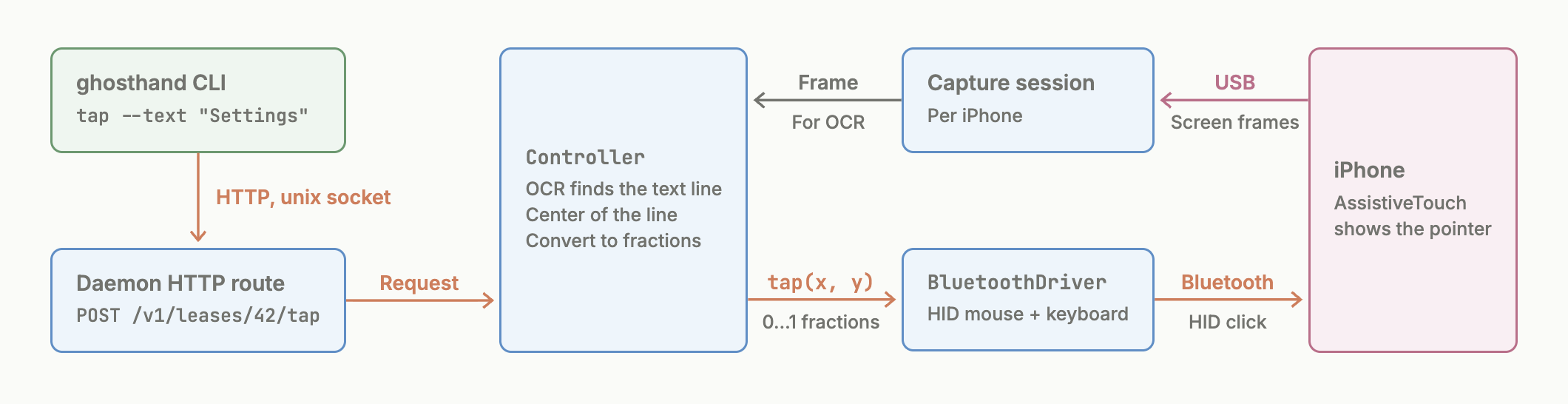
The daemon publishes a Bluetooth Classic HID service, the same profile a real Bluetooth keyboard uses. macOS has no public API to be a Classic HID device, so it uses CoreBluetooth's private
CBClassicManager.Mac (daemon) iPhone ┌──────────────────────────────────┐ ┌─────────────────────────────┐ │ SDP record: HID, report map │ <──SDP query─── │ Settings > Bluetooth > Pair │ │ L2CAP 0x11 control (handshakes) │ <──opens─────── │ │ │ L2CAP 0x13 interrupt │ ──reports─────> │ AssistiveTouch │ │ report 1: mouse (absolute) │ │ pointer + clicks = touches │ │ report 7: mouse (rel.), wheels │ │ │ │ report 2: keyboard, 6: media │ │ │ └──────────────────────────────────┘ └─────────────────────────────┘
Report 1 is absolute. X and Y go from 0 to 32767, so a screenshot pixel converts directly to a pointer position (tested on iOS 18.7 over Classic). Report 7 is relative, for iOS versions that ignore absolute positions (iOS 15 over BLE).
Clicks in absolute mode go in both reports. With two mouse collections in the map, iOS 18 ignored the button bits of report 1 over BLE. So the daemon sends each press and release in report 1, and also in report 7 with zero movement.
check:  corner ──> move (80,120) pt ──> screenshot P1
        corner ──> move (160,120) pt ──> screenshot P2
        pointer found in P1 and P2 ──> gain = measured / computed (saved in state.db)
tap:    computed reports from the last known spot ──> 100 ms pause ──> click
Private API details
addServiceWithData:takes the SDP record in bluetoothd's own element format, not the SDP wire format. We found the format by reverse engineering bluetoothd.sendMsg:35withkCBMsgArgDiscoverableStatemakes the Mac discoverable.- CoreBluetooth does not install L2CAP callbacks for other apps, so the daemon swizzles
CBClassicPeer.handleMsg:args:to install them. - The daemon must keep a reference to each
CBL2CAPChannel. Releasing it closes its socket, and the iPhone shows "Connection unsuccessful". - A macOS update can change any of these.
How the USB screen is captured
macOS shows each USB iPhone as a camera after a process sets the CoreMediaIO flag
kCMIOHardwarePropertyAllowScreenCaptureDevices. QuickTime uses the same path. launchd then starts iOSScreenCaptureAssistant, a macOS helper that sets up each USB iPhone, and AVFoundation lists the iPhone. Only the daemon sets the flag, and the helper exits with its last client.daemon ──sets CMIO flag──> launchd ──starts──> iOSScreenCaptureAssistant │ sets up each USB iPhone once, on attach v daemon <──────────── one AVCaptureDevice per iPhone (frames) ──── AVFoundation
The startup timer
The helper sets up an iPhone only once and never retries. After a quick daemon restart this can fail in two ways:
- No iPhone is listed. The new helper started while launchd still throttled the old one.
- Only some iPhones are listed. The old helper's USB teardown disconnected some iPhones while the new helper set them up (
kAMDDeviceDisconnectedErrorin its log). We saw this with 4 iPhones. The control plane then says "Screen capture does not show this iPhone yet".
Setting the flag again does not help. Only a fresh helper does. So after start, the daemon runs a timer every 5.5 s:
tick ──> every trusted, unlocked USB iPhone listed? ──yes──> stop the timer (usually 1st tick)
          │
          ├── none listed ──────────────> flag off (helper exits), next tick on (fresh helper)
          │
          └── some missing on 2 ticks ──> same restart, at most 3 times,
              in a row (11 s)              then log which iPhones are still missing
- Nothing waits for the timer. The API answers at once, and listed iPhones work at once.
- A restart costs about 11 s and stops capture of every iPhone during that time. That is why a partial list gets only 3 restarts.
- After the timer stops, nothing restarts the helper. An iPhone that you plug in locked or untrusted stays missing.
listwarns, the log saysscreen capture does not list <name>, and a replug fixes it.
screen capture does not list iPhone, restarting the screen capture helper screen capture devices on again screen capture lists iPhone, Naomi’s iPhone, Morse’s iPhone, iPhone XR Tommy
How a phone is found
Each iPhone reports its Bluetooth address over USB lockdown. Its HID link to the Mac uses the same address, so the daemon joins the USB screen and the Bluetooth input by address. No pointer moves, and the daemon never sends input to other connected devices, like an iPad or other phones.
USB lockdown BluetoothAddress ──── EC:CE:D7:A4:9B:C1 ────> Bluetooth HID link
State database
~/.ghosthand/state.db is a SQLite database. Device matches and pointer modes are caches, with one row per iPhone keyed by Apple's UDID. The lease table holds active leases, and lease_counter keeps the highest issued ID, so the daemon never reuses an ID (see Leases).phone (USB) bluetooth_pointer (Bluetooth) ┌───────────────────────────────────┐ ┌──────────────────────────────────────┐ │ usb_udid PK │<───────│ usb_udid PK, FK, ON DELETE CASCADE │ │ screen_capture_id UNIQUE │ │ mode absolute | relative │ │ capture_matched_by / _at │ │ gain, screen_width_pt, _height_pt │ └───────────────────────────────────┘ │ report_map, found_at │ └──────────────────────────────────────┘
sqlite3 -header -column ~/.ghosthand/state.db 'SELECT * FROM phone; SELECT * FROM bluetooth_pointer' # usb_udid screen_capture_id capture_matched_by capture_matched_at # 00008020-000405C214BB002E 7EF219AD-69B4-423E-B8C4-4F4A6140822F only-new-phone 1790773434 # usb_udid mode gain screen_width_pt screen_height_pt report_map found_at # 00008020-000405C214BB002E absolute classic-a85efc997e025d8f 1790773436
| Table | Written when | If the row is missing |
phone | a command sees a new iPhone. capture_matched_by: only-new-phone or same-name (see More iPhones). assistive_touch_off_after_lease: 1 when ghosthand turned AssistiveTouch on, so it goes off once no lease holds the iPhone | matched again the same way |
bluetooth_pointer | the first tap or swipe | iOS 17+: absolute again, no check. Older iOS: the pointer check runs on the next tap |
- Some fields are not stored, because USB lockdown gives them on every command. These are the name, the Bluetooth address, the lock state and the AssistiveTouch setting.
- Bluetooth pairing is not in
state.db. macOS keeps the bond. A phone paired while the daemon was stopped, or with nostate.db, reconnects on the next command (tested). - The daemon never changes a saved match by itself, even while its phone is missing from one list during a plug-in. If a match is wrong, delete its
phonerow (below). - Schema migrations keep the state. The migration from version 5 to 6 adds AssistiveTouch ownership without deleting matches, pointer settings, leases or the lease counter. The daemon refuses newer or unsupported schemas without deleting data. Never delete
state.dbto get past that error.
Fix a bad state with
sqlite3, also while the daemon runs, because the daemon keeps no copy in memory. Turn on foreign_keys. The sqlite3 shell has it off, and without it, deleting a phone does not delete its pointer row.DB=~/.ghosthand/state.db sqlite3 $DB "PRAGMA foreign_keys = ON; DELETE FROM phone WHERE usb_udid = '00008020-000405C214BB002E'" # one iPhone sqlite3 $DB 'DELETE FROM bluetooth_pointer' # all pointer modes
- Screen from one phone, input to another? Delete its
phonerow. Plug in new phones with the same name one at a time. - Pointer lands in the wrong spot? Delete its
bluetooth_pointerrow.ghosthand forgetalso deletes it, but it removes the Bluetooth bond too, so you must pair again. - Never delete or restore
state.db. Resetting its counter can give a new lease an old ID.
iOS versions
Tested on iOS 18.7 (iPhone XR) over Bluetooth Classic, and on iOS 15.8.4 (iPhone 6s) with the earlier BLE version. The iPhone sees the Mac as a normal Bluetooth Classic mouse and keyboard (HID profile over L2CAP). The only difference between versions is how the pointer moves.
| iOS | Pointer | Tap | Accuracy |
| 18.7 | absolute: report 1 says "go to X, Y" | ~0.3 s | exact |
| 15.8 | relative over BLE (iOS ignored absolute X/Y); not tested yet over Classic | ~0.45 s | 0.2 pt mean, 0.4 pt max (40 targets) |
- The daemon picks the mode by itself on the first tap. iOS 17 and later use absolute. On older versions, the daemon moves the pointer to check.
listshows the mode, for example(bluetooth connected, relative pointer). - Apple does not document absolute pointers for AssistiveTouch, and no changelog mentions them. We found the iOS 15 behavior by testing over BLE. The phone read report 1, but the pointer stayed still.
- In relative mode, the daemon knows exactly how far each report moves the pointer, from Apple's own acceleration table. See Relative pointer.
Which iPhones get which pointer
Absolute first, on every iOS version. iOS 17 and later use it with no check. Older iOS tries absolute on the first tap and falls back to relative only if the pointer does not move.
| iPhone | Last iOS | Pointer | Tap |
| 6s, 6s Plus, 7, 7 Plus, SE (1st gen) | 15 | relative over BLE (tested on 6s); absolute over Classic not tested | ~0.45 s relative, < 0.5 pt off |
| 8, 8 Plus, X | 16 | absolute tried first, not tested | |
| XS, XS Max, XR, SE (2nd gen, 2020) and newer | 17+ | absolute (XR tested) | ~0.3 s, exact |
- The "absolute from iOS 17" claim comes from a vendor of ESP32 BLE HID firmware, not from Apple. Bluetooth Classic HID may behave differently, so the daemon checks older iOS versions instead of assuming.
Relative pointer (iOS 15)
iOS turns each relative report into a fixed distance. It looks up the report's size in the built-in IOHIDFamily acceleration table. Time does not count, and fractions of a point add up. So the daemon can compute the reports for any move:
tap 300,500 with the pointer at 40,120 (move +260,+380 pt) on a 6s:
  (+169,+248) (+170,+247) ── speed 300, past the flat end of the table ──> 214.9 pt each
  (+16,+24)               ── speed 28 ─────────────────────────────────> 30.0 pt
  (0,-1)                  ── speed 1: 0.2 pt, lands within 0.2 pt
  100 ms pause, then click                                   ~0.45 s in total
- We measured this on an iPhone 6s (iOS 15.8.4). 15 report sizes, diagonals, and bursts compared with 100 ms gaps all matched the table to 0.5 pt. 40 taps in a row landed 0.2 pt from the target on average, with no drift. See docs/relative-pointer.md for details.
- The daemon remembers where the pointer is. Only when it does not know (daemon start, Bluetooth reconnect, rotation, 60 s idle) does it first push the pointer into the top-left corner, which adds 0.3 s.
- Tracking Speed changes the distances. The pointer check measures a
gain(1.000 at the default speed) and scales the table by it. Other speeds are not tested. - Swipes follow
--duration. The daemon spreads the reports over the duration and sizes them so the drag ends exactly at the target.
Architecture
CLI / curl / any language
   │ HTTP over ~/.ghosthand/daemon.sock (mode 0600, no token)
   v
Hummingbird ──> generated API (openapi.yaml) ──> own thread ──> Controller
     ^
     │ /mcp and /v1, via tunnel.sock
MCP clients ──> ghosthand.dev/mcp (OAuth) ────┐
scripts ──> ghosthand.dev/macs/<mac>/v1 (API token) ──> WebSocket the daemon opens while signed in
                                                                  │
      ┌───────────────────────────────────────┬───────────────────┤
      v                                       v                   v
  FrameStream per iPhone (AVFoundation)   Lockdown lock state     HIDDevice: BT Classic
  OCR (Vision)                            (MobileDevice)          HID, CBClassicManager
website/openapi.yamlis the daemon's API spec and the source of truth. swift-openapi-generator builds the server and the client from it.- AVFoundation and CoreBluetooth need the main run loop, so HTTP runs in a detached task.
- Each request runs on its own thread. Capture, OCR and lock state have a lock per iPhone. Input sequences (
unlock, taps) run one at a time per iPhone. Different iPhones run in parallel. - Files:
~/.ghosthand/daemon.sock,daemon.log,daemon.lock,state.db.
Daemon source code
The Swift daemon source needs a Pro subscription. It lives in the private repo ghosthand-dev/ghosthand-daemon, the
daemon/ submodule of this repo. Pro subscribers get read access to it on GitHub (pricing). Everything else in this repo is MIT.